
Accepting an Offer - Guide
Via Email
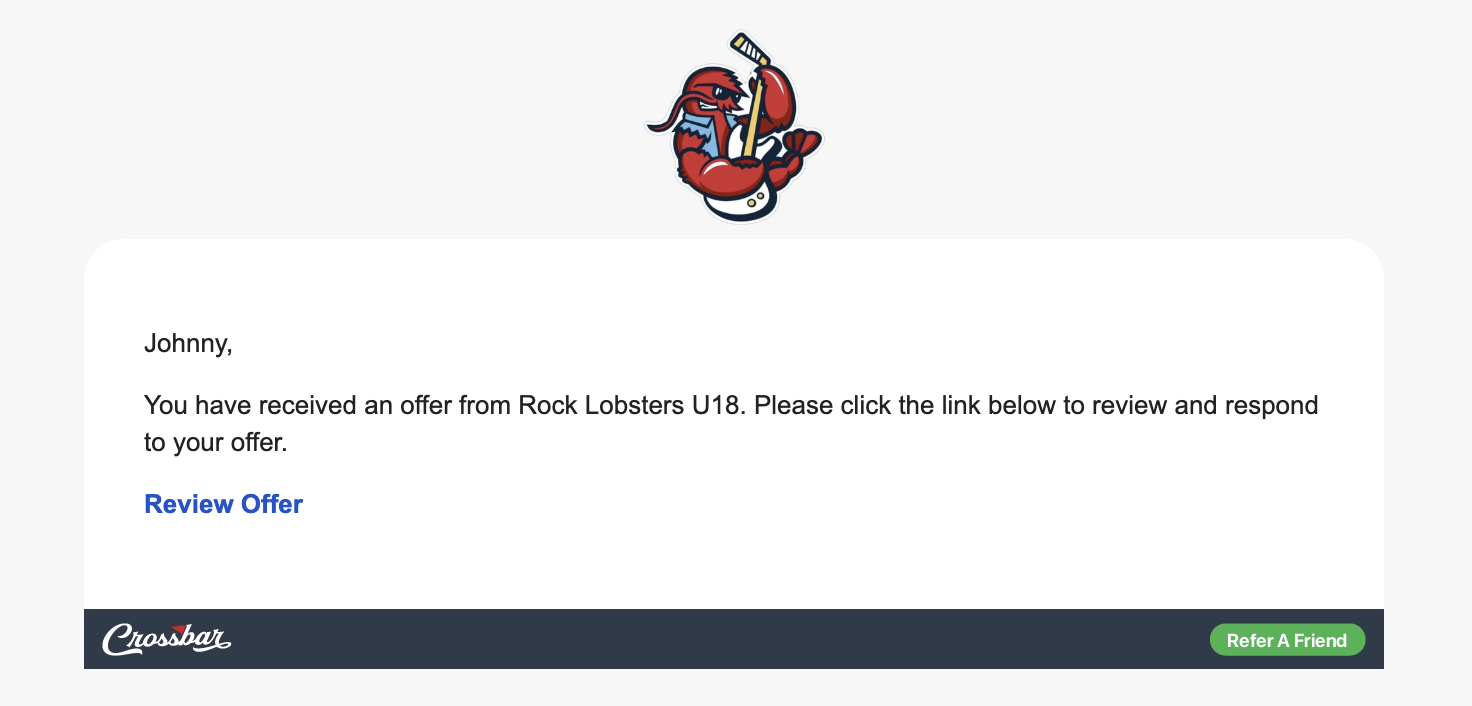
If you have been sent an offer, you should receive an email and can click on the "Review Offer" hyperlink found within the email. To the right is an example of what the offer acceptance email will look like:
If that email does not come through or you cannot locate it, please continue to the directions below.
Via the MDHL Site
If you've received an offer from the MDHL but are having issues accepting the offer via email, you can review the details and accept it directly from your Crossbar account.
- Log in to your Crossbar account on the MDHL site.
- Navigate to Account (top left of the screen).
- Click the details icon of the player with an active offer.
- While on the players profile, click the Review button found underneath the Pending Offers banner.
- Review the offer details, including any fees, terms, or additional information.
- Complete the checkout process if payment is required.
Once your offer has been accepted, your registration status will be updated automatically.
Video Guide
Still Having Issues?
If you are running into issues accepting your offer, feel free to reach out to the Crossbar team by utilizing the chat bubble at the bottom right of your screen or reach out to them directly via their help email: Help@Crossbar.org